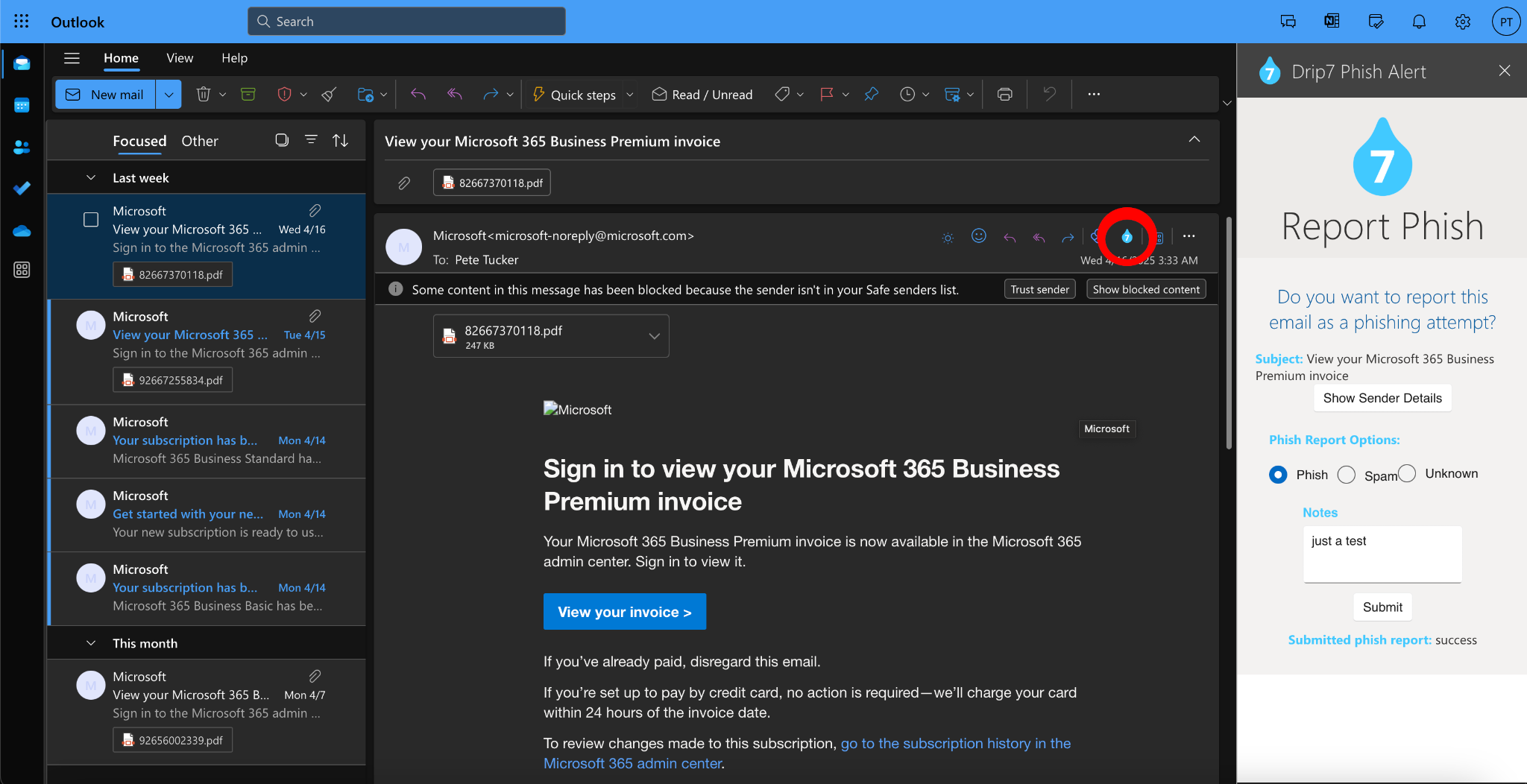
This document will walk you through setting up the Drip7 Outlook Phish Extension through Office 365 Admin. The overall process is quite easy, and integrates well in Outlook for desktop, browser, and mobile.
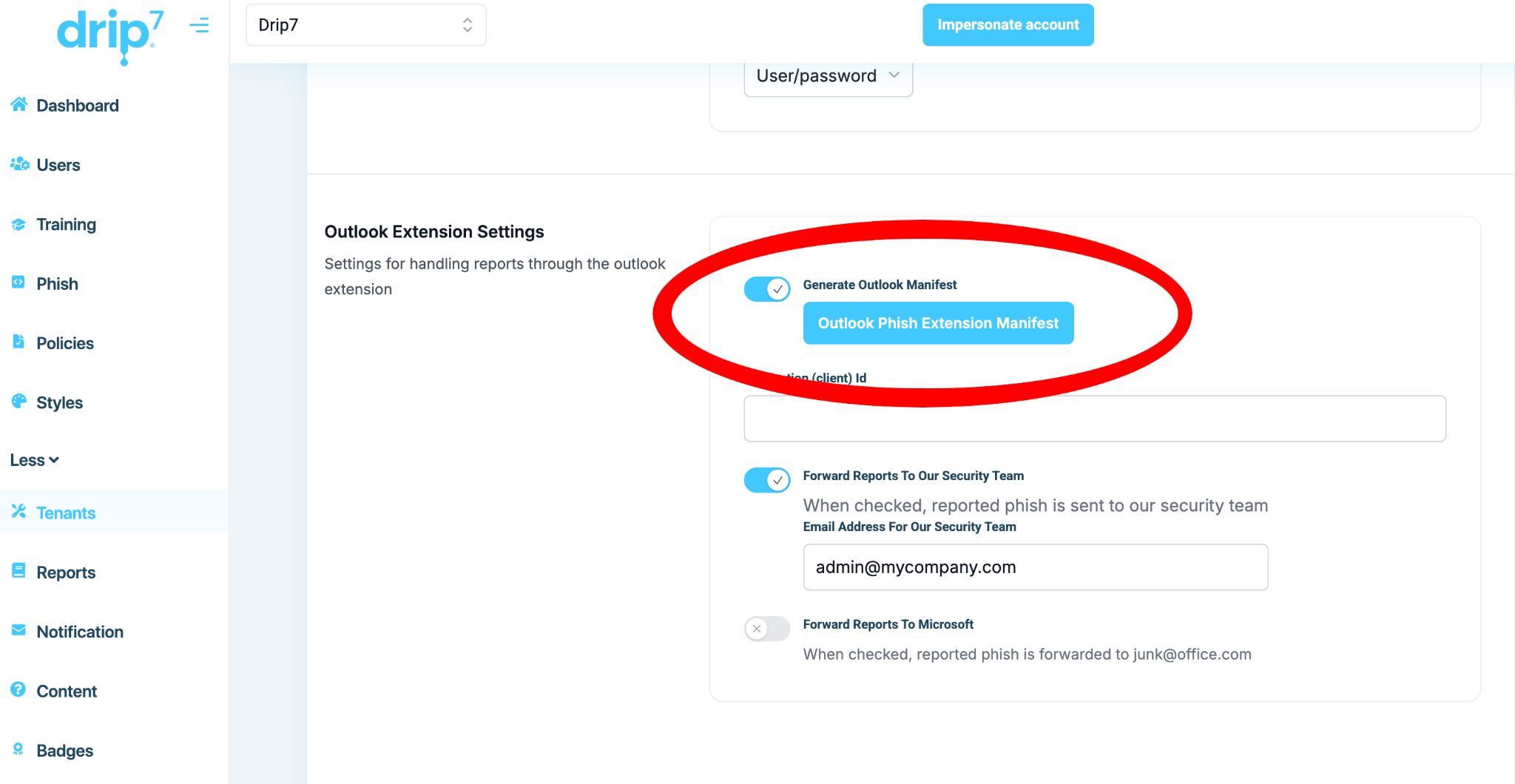
Log into Drip7, switch to the Tenant tab, then scroll to the Outlook Extension Settings section. Click on the “Generate Outlook Manifest” switch, then click on Outlook Phish Extension Manifest”.
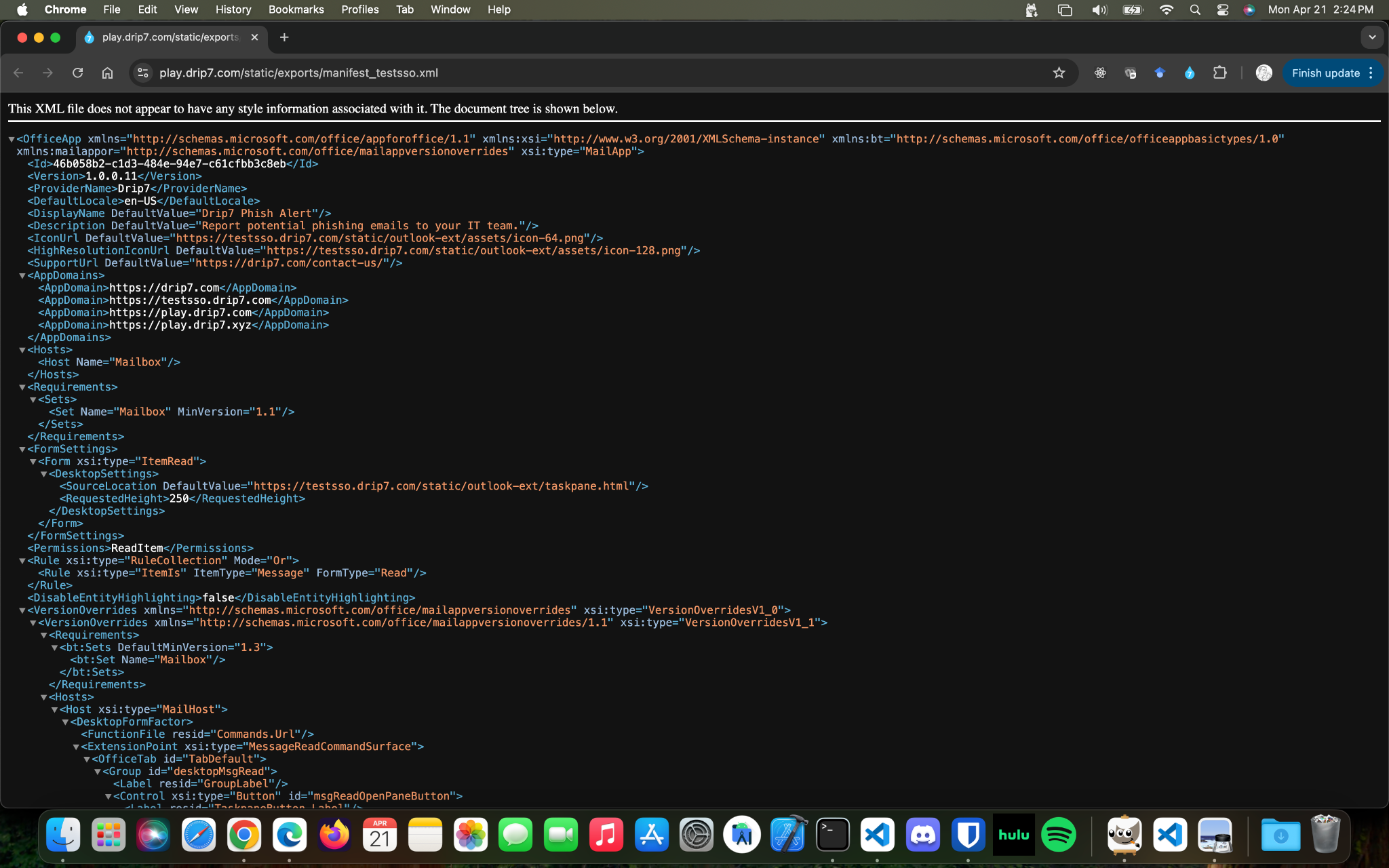
You should land on an XML file, and that is the manifest file that Office 365 will need to configure the Outlook extension. Right click on that file, and save it to a location where you’ll find it.
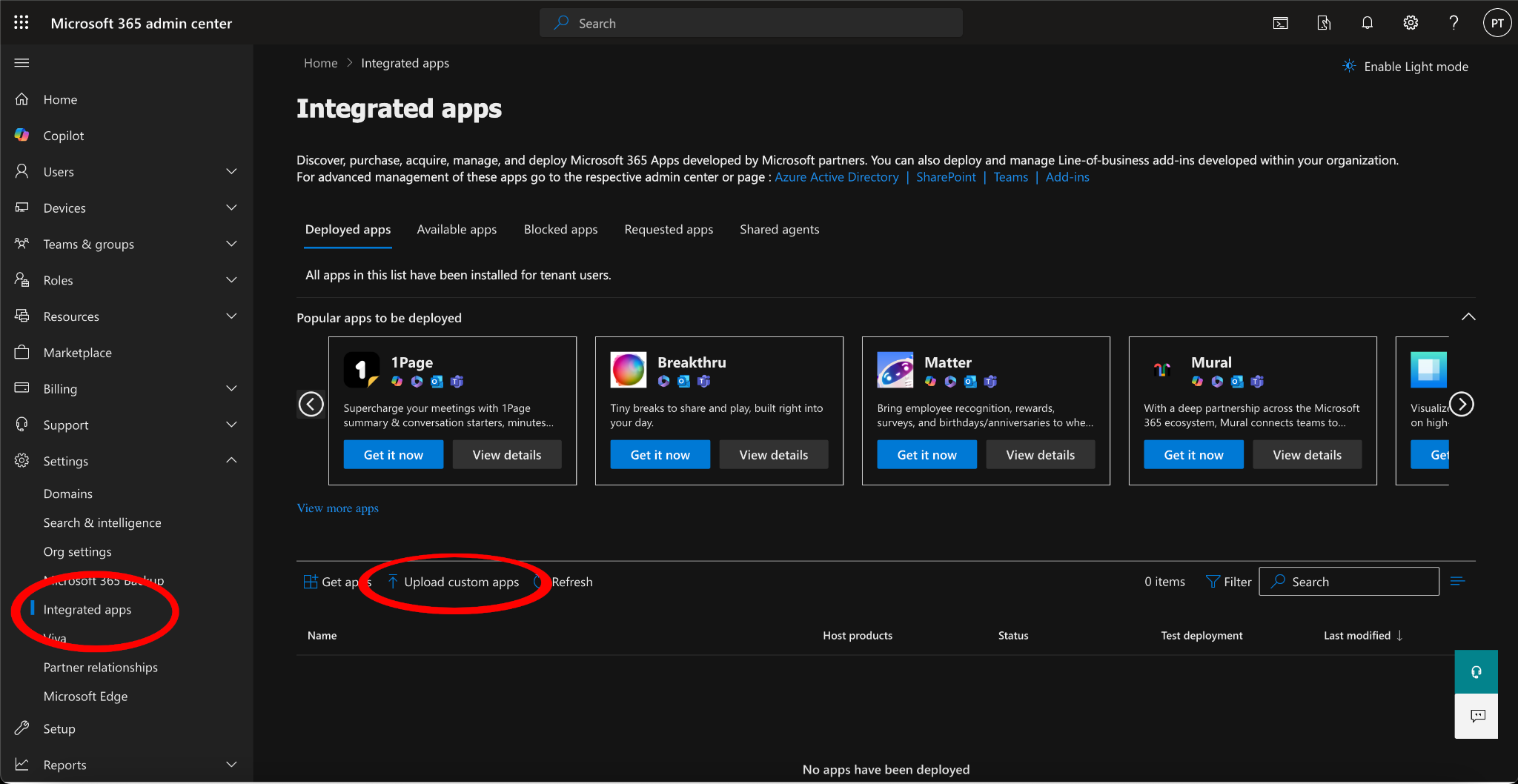
Log into the Office 365 Admin Center for your organization, then select Settings/Integrated App. Next, click on “Upload custom apps”.
Choose “Office Add-in” for the App type, and Upload manifest file (.xml) from device. Office 365 will upload and validate the manifest file. If that succeeds, click on Next.
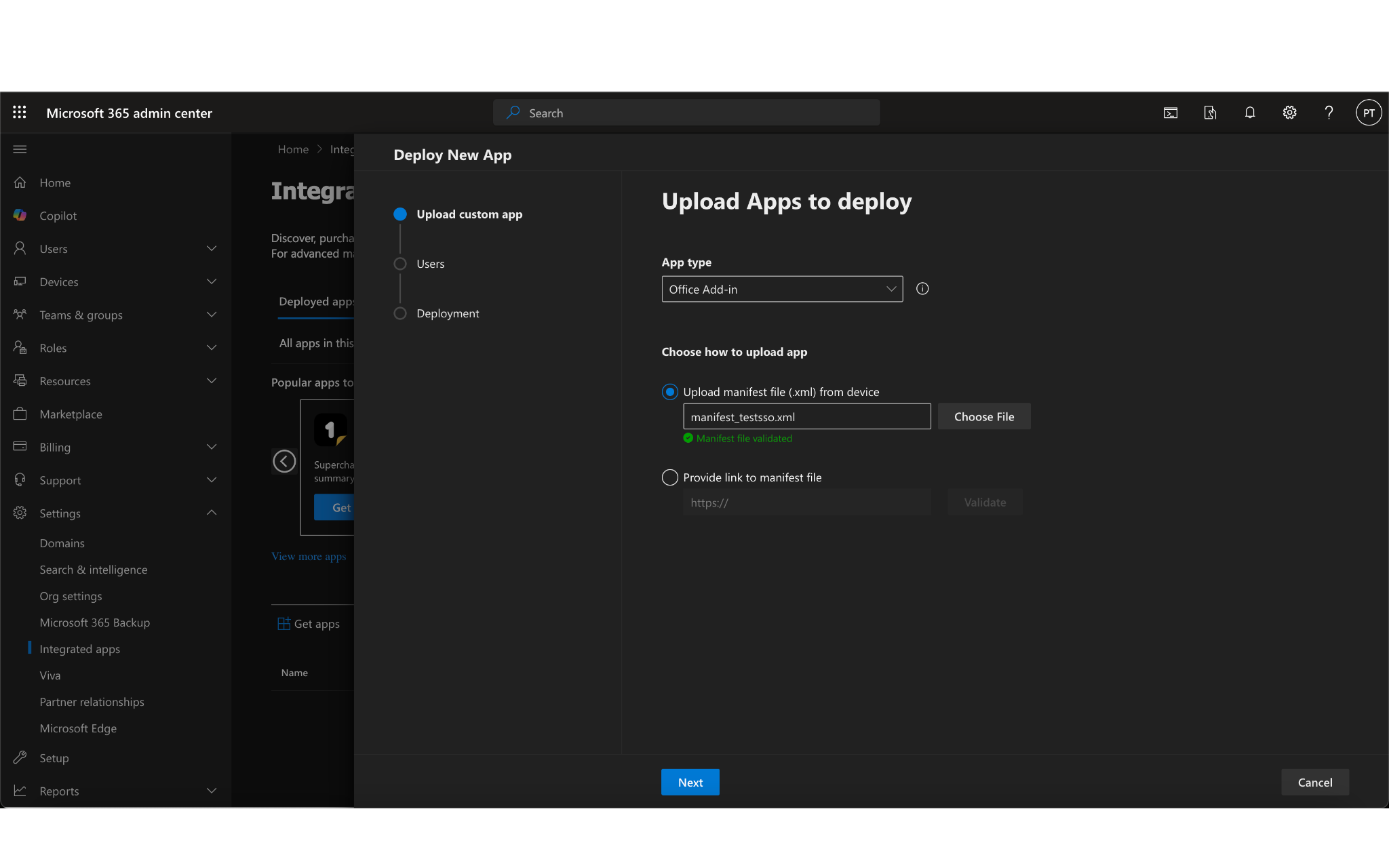
You can assign the app to any users in your organization that you’d like. Hit Next, then Next again, then Finish deployment to accept the app and add it to your organization.
Once complete, log into your Entra ID admin console and click on App Registrations. Find the Drip7 Phish Alert and click on Authentication. You’ll need to set up a redirect URI. Click on Add a Redirect URI, then choose Single-Page Application from the slideout:
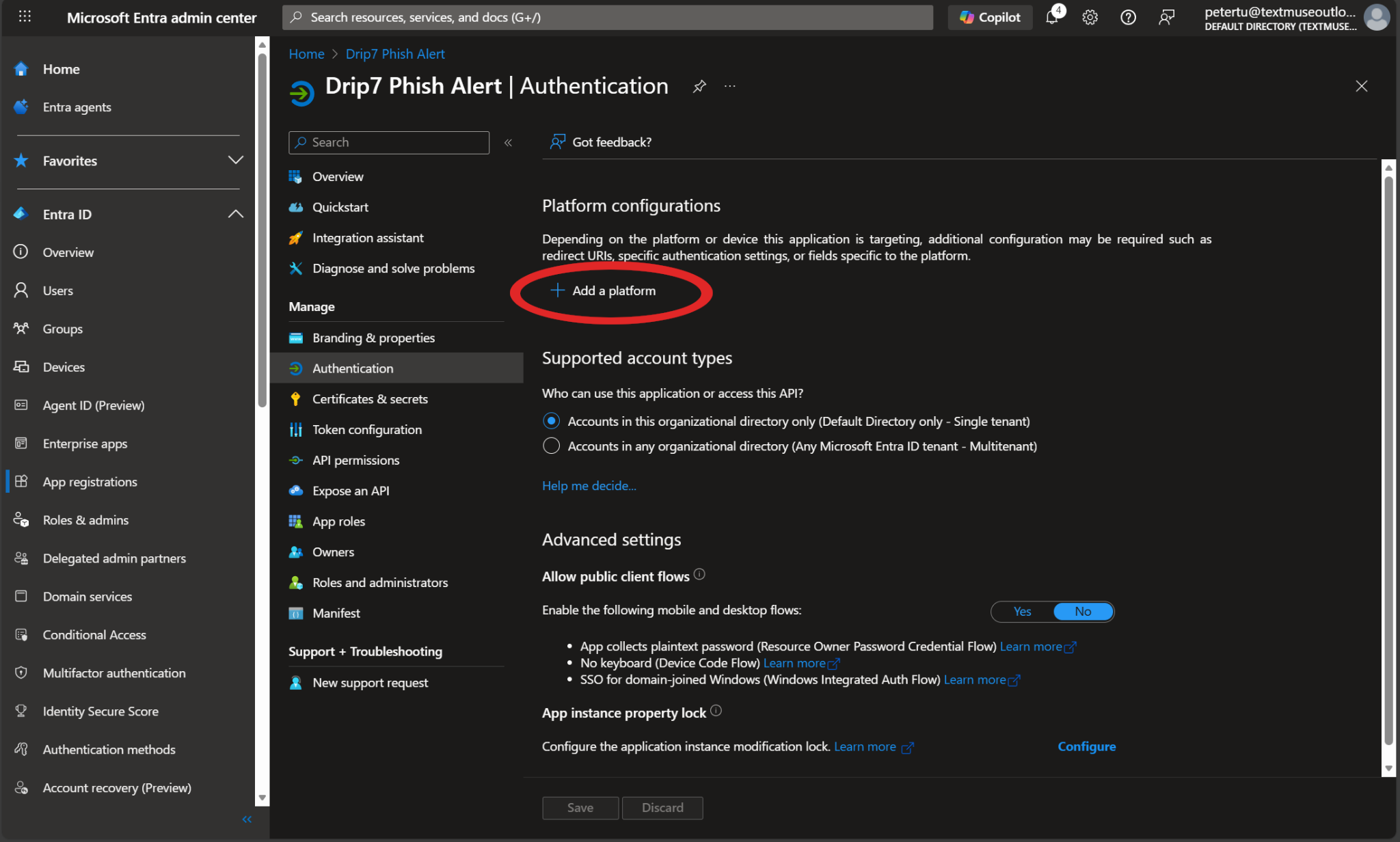
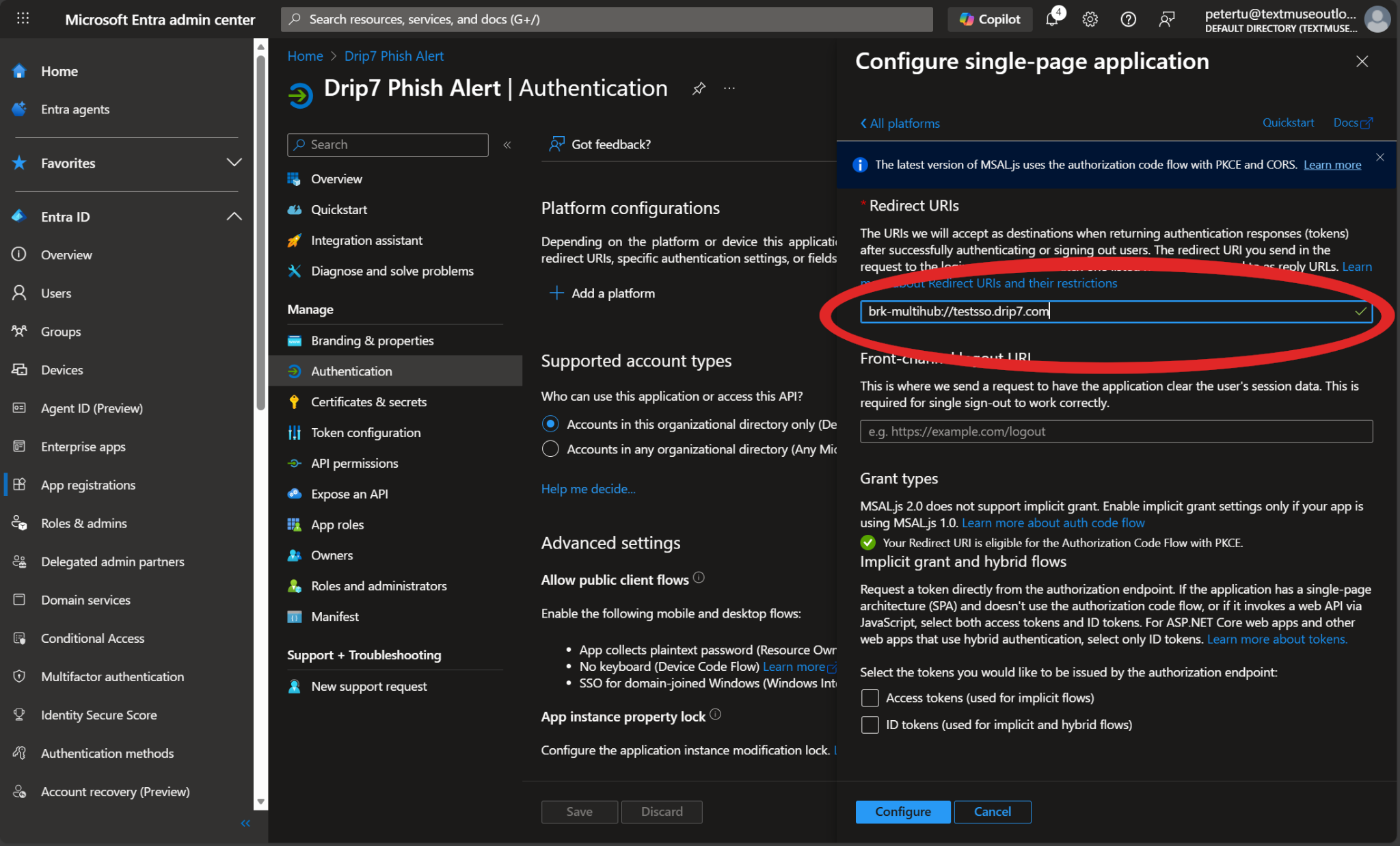
Your redirect URI will take the form brk-multihub://tenant.drip7.com, where tenant is your tenant’s subdomain:
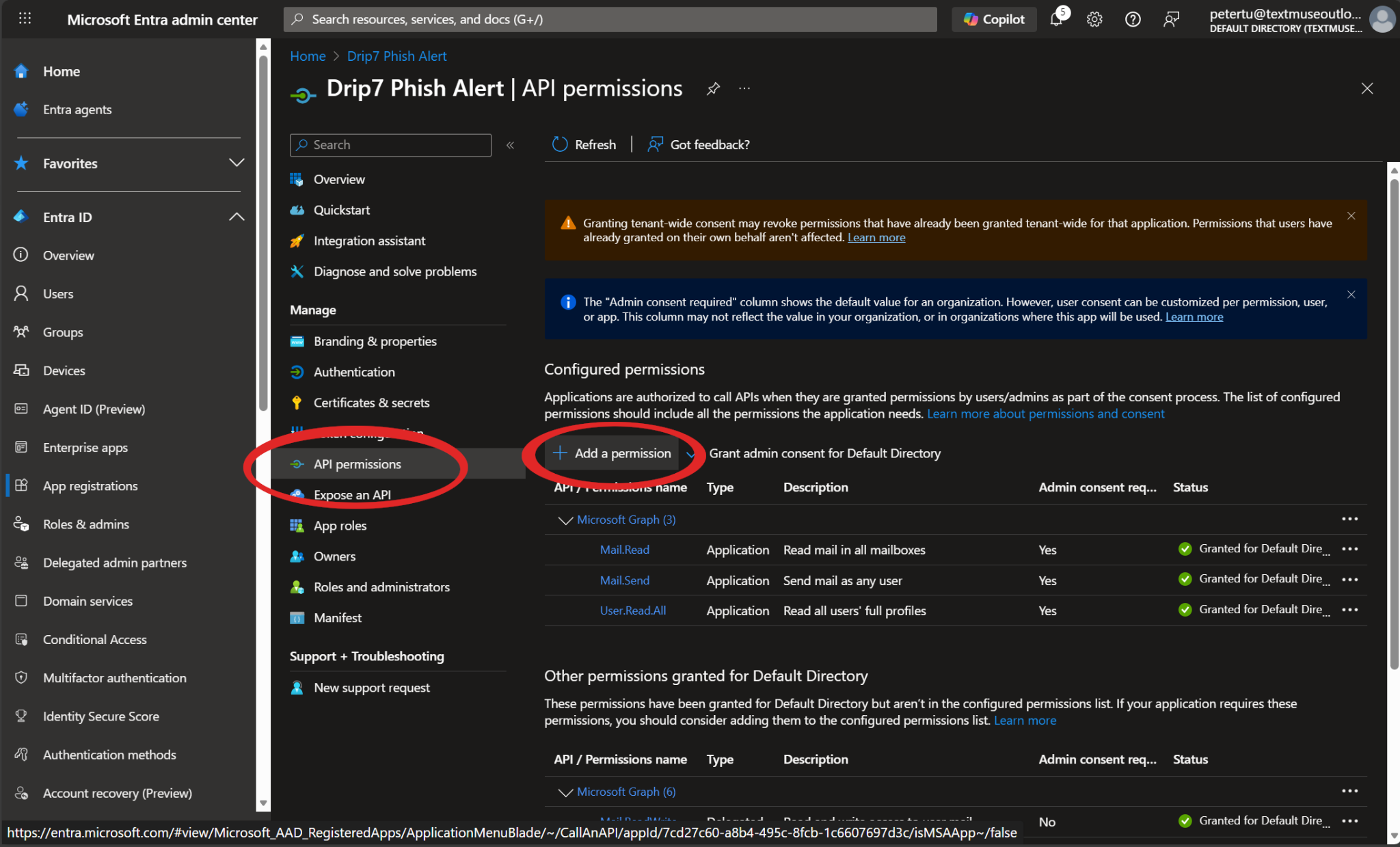
Next, you’ll need to set the API permissions. Click on API permissions, then on Add a permission. Choose Microsoft Graph from the slideout and Delegated permissions, then search for the three listed in the image (Mail.Read, Mail.Send, and User.Read.All):
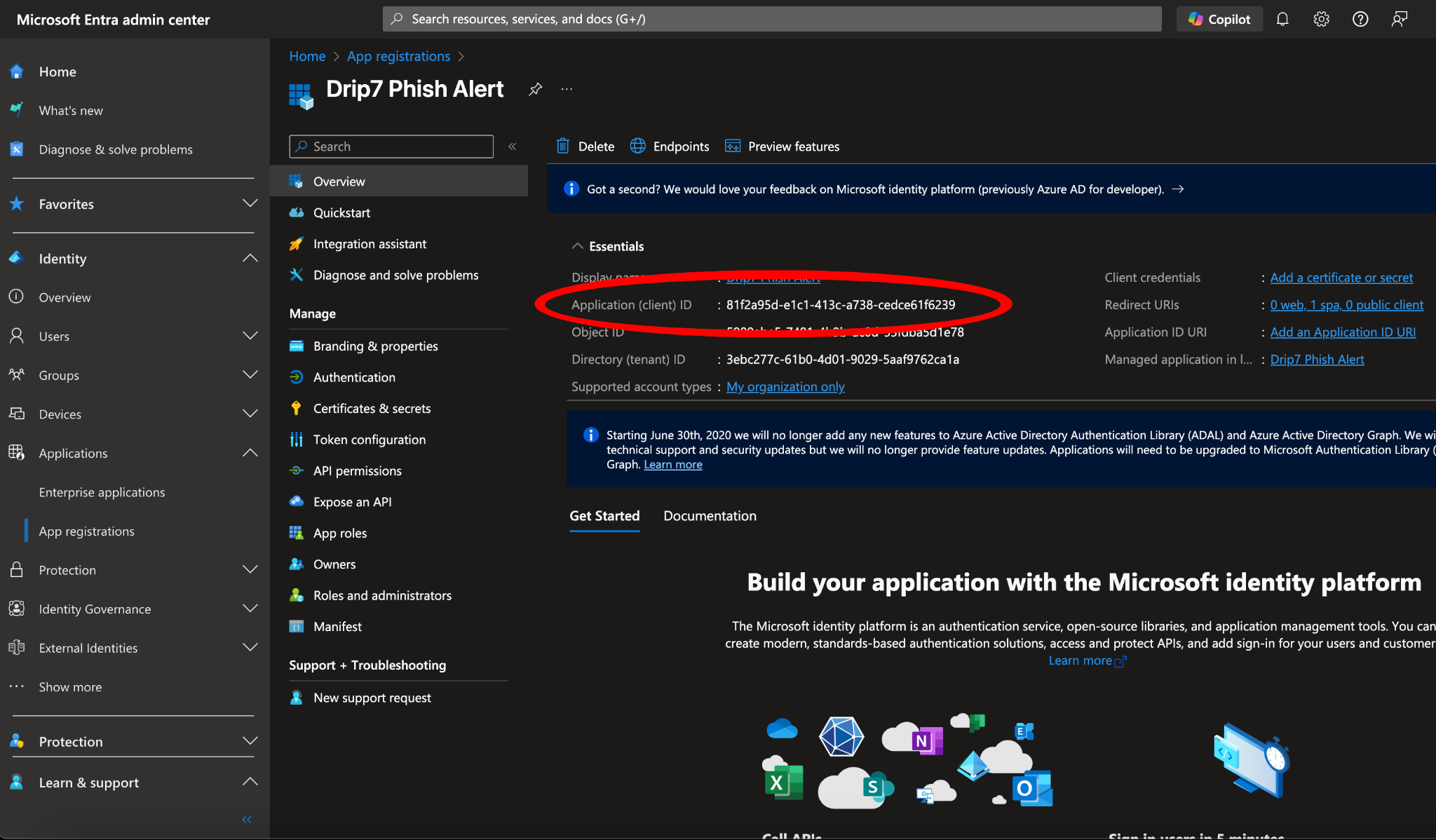
Finally, return to your registered application and copy the Application (client) ID UUID.
Now, return to the Drip7 Admin Dashboard and find the Outlook Extension Settings section in Tenants again. Paste the application (client) ID into the field on the dashboard.
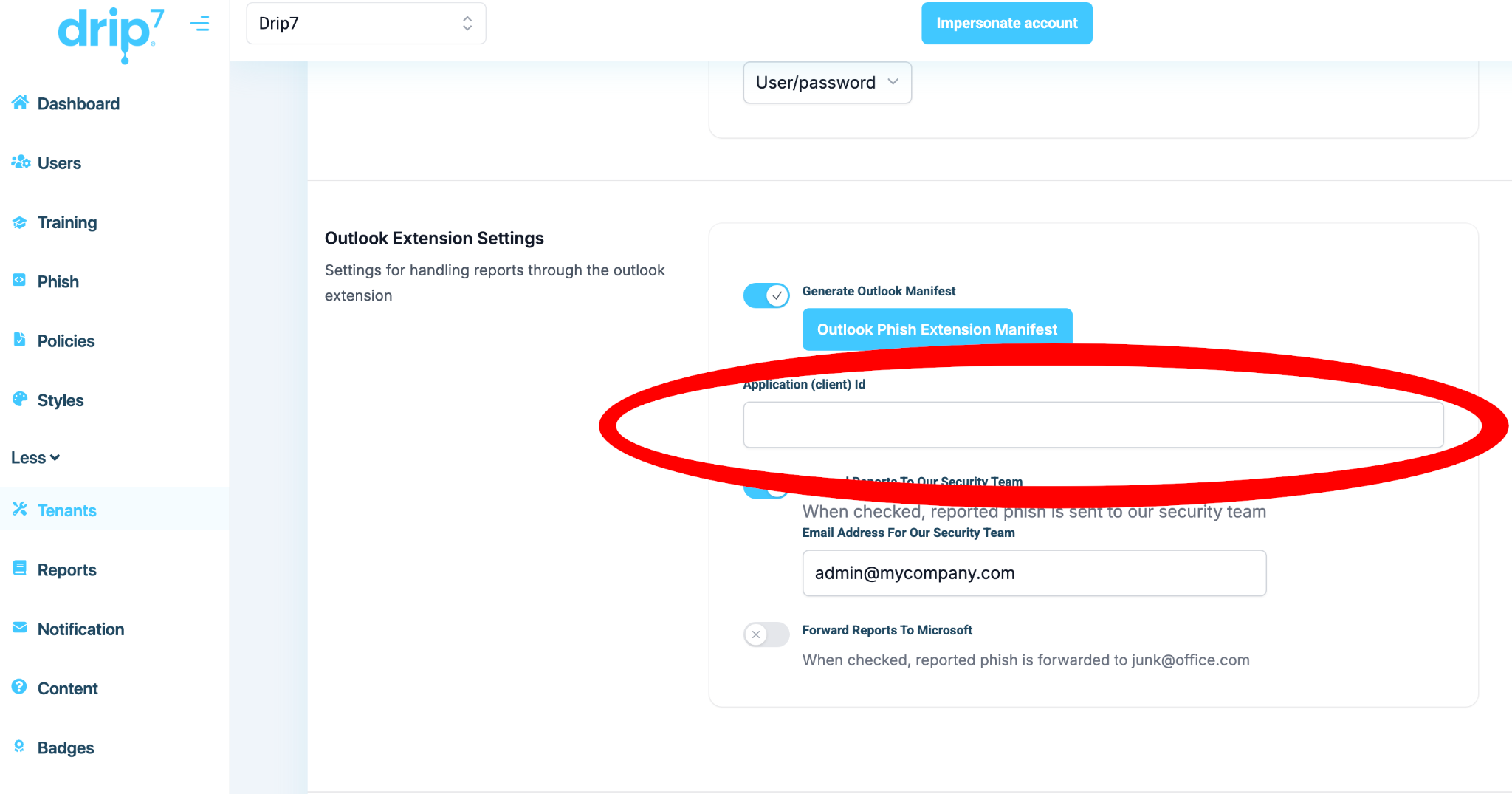
The other two checkboxes are for reporting. If you’d like to have these phish reports sent to a specific email in your organization, turn that switch on and set the email address. If you’d like to have the phish reported to Microsoft as part of their official phish reporting, turn that switch on also. Regardless of the settings for those two switches, Drip7 will still record the user interactions with your phishing campaigns.
In our testing, it has taken up to two days for theDrip7 Outlook Extension to deploy to users. Once it is deployed, users will see the Drip7 logo integrated in their email viewer in Outlook. They can click on it to report a phish.