This article will walk you through setting up the Mentor7 Virtual Coach (Teams Chat App) through Office 365 Admin.
Log into your Entra admin center (https://admin.teams.microsoft.com/dashboard). Click on Teams Apps, then Manage Apps. Click on the Actions button in the top right, and choose Upload New App.
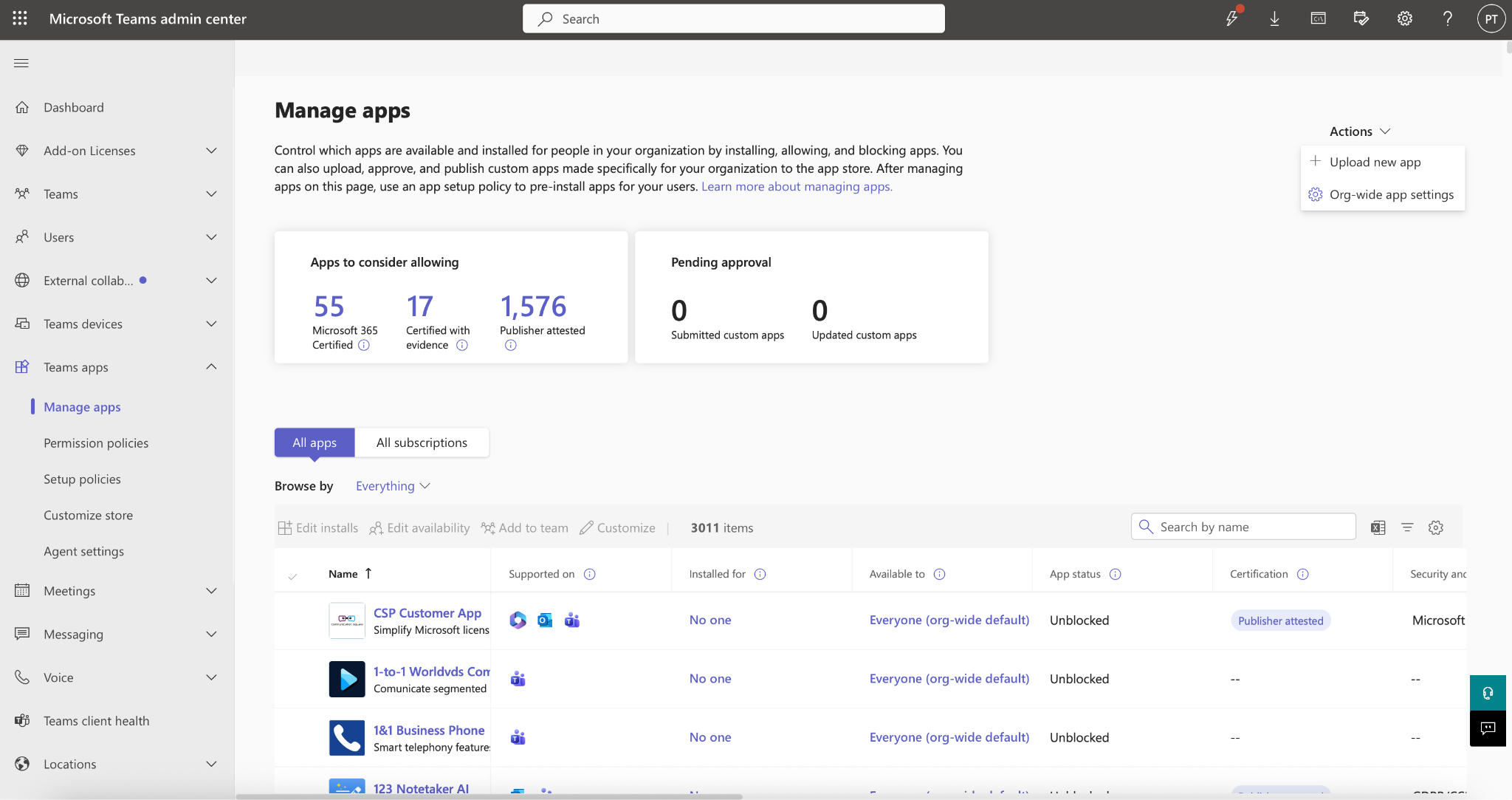
A File Open dialog will appear. Choose the Drip7 App ZIP file that you received. Once uploaded, click on the link given to manage Mentor7.

Click on Users and Groups, then the Install App button. You’ll see a panel on the right that will allow you to assign the app to your users and groups.

Finally, make sure your policies allow for uploading custom apps. Click on Teams app/Setup policies, then choose the appropriate policy for your users. You’ll see a toggle for allowing custom apps. Make sure that’s on.

Once that’s complete, Mentor7 will be available as a button in the Teams app for the members of your organization. Note, it may take up to 24 hours for the app to appear.